Saving & Sharing
MUSE stores saved logic models in your workspace. From there you can restore earlier versions, share a model with teammates or by link, export it as an image or JSON, and hand off the Measurement Recipe as HTML.
Saving, version history, and sharing require signing in. Exporting works signed out.
Drafts in Your Browser
While you edit, MUSE keeps an unsaved draft of the canvas in your browser. If you reload the page or close the tab, the draft is restored the next time you open the same logic model, with a "Restored your unsaved draft" notice. Click Discard on that notice to drop the draft and go back to the last saved version.
A draft exists only in the browser it was made in. It is not available on other devices, and it is deleted when you sign out or delete your account. Click Save to keep your work.
Saving a Logic Model
- Click Save in the canvas header. If you're signed out, the sign-in dialog opens first; after signing in you return to the same canvas with your draft intact.
- The first save creates the logic model in your active workspace, and the address changes to
musecanvas.app/canvas/[id]. - Each later save stores a new version. The button is disabled while there is nothing new to save.
There is no automatic saving to the workspace: a version is created only when you click Save.
A new logic model is named "Untitled". Click the title in the canvas header to rename it; press Enter to confirm or Esc to cancel.
An empty canvas cannot be saved, and a single logic model can be at most 5 MB.
Finding Your Logic Models
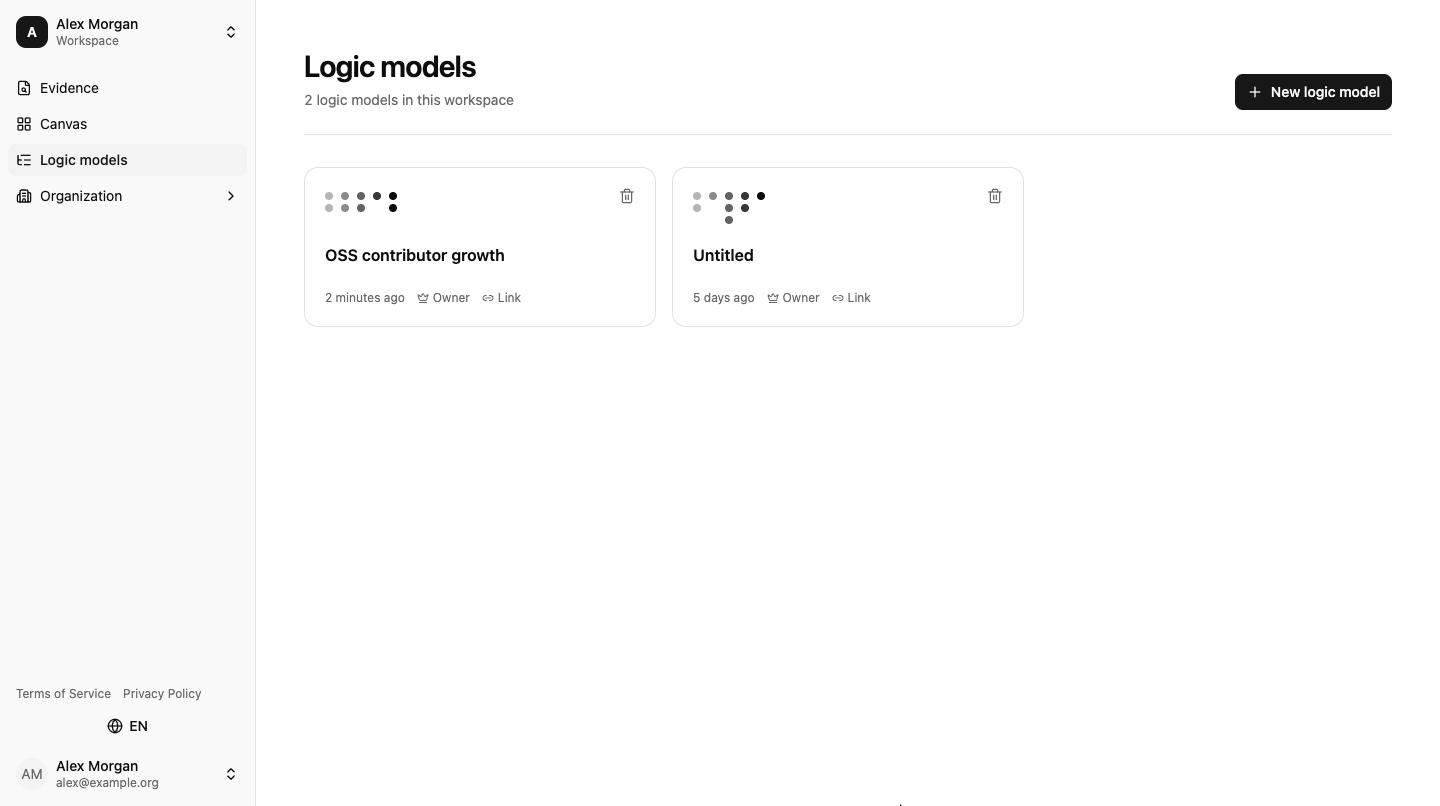
Click Logic models in the sidebar to list the logic models in the active workspace that you can access. Each entry shows its title, when it was last updated, whether you own it or it was shared with you, and whether workspace or link sharing is turned on.
- Click a title to open the logic model on the canvas.
- Click New logic model to start an empty canvas.
- Click the trash icon to delete a logic model. Deleting removes all of its versions and shares and cannot be undone.
The list follows the workspace selected in the switcher at the top of the sidebar. Switch workspaces to see the logic models stored elsewhere.
Version History
Every save is kept. To look back:
- Open a saved logic model and click the History (clock) icon in the canvas header.
- The panel lists each version with its number, date, and author.
- Click Restore on a version to bring it back.
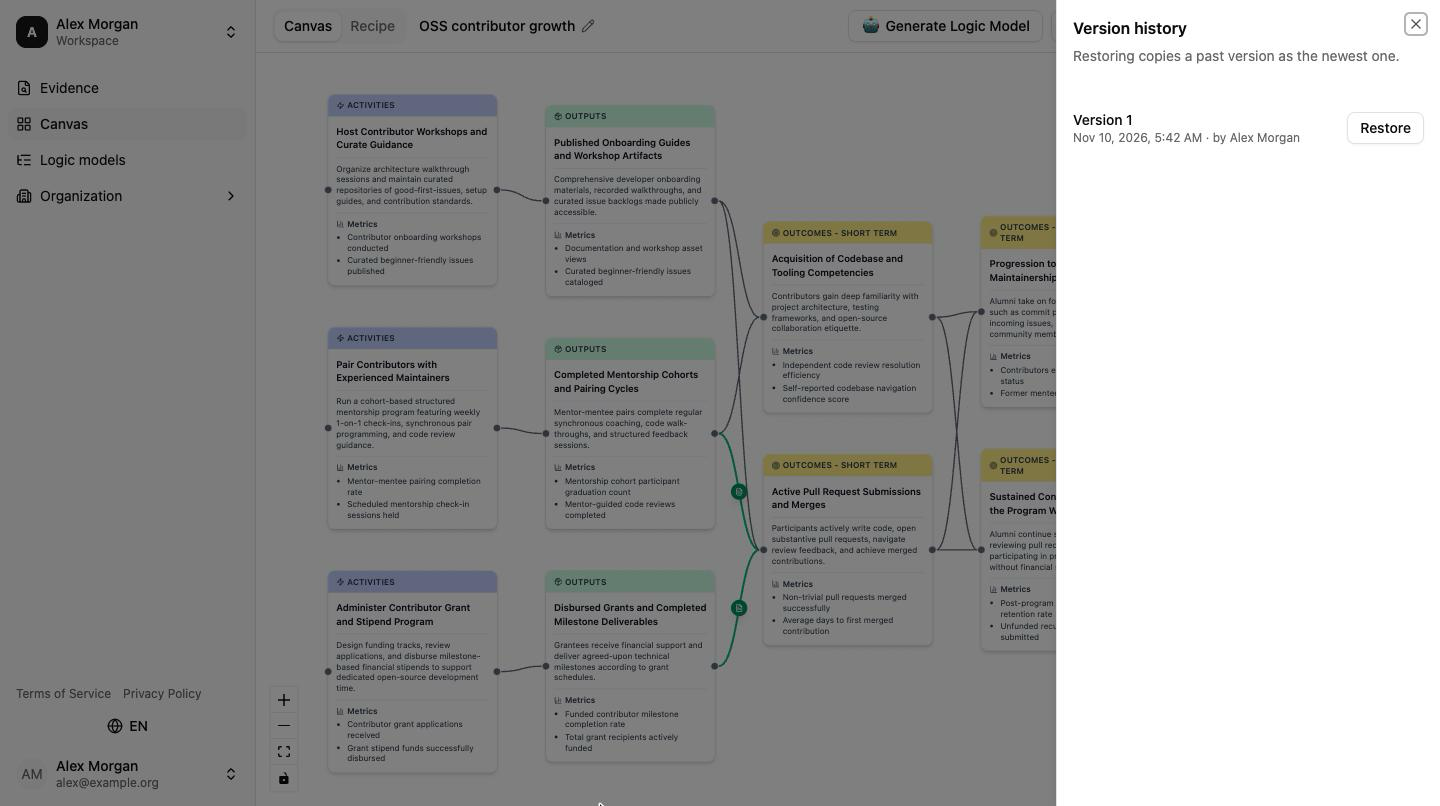
Restoring does not delete anything: the chosen version is copied as the newest version. If the canvas has unsaved changes, MUSE asks for confirmation first because they will be replaced.
Restore is available to the owner and to people with edit access.
Sharing
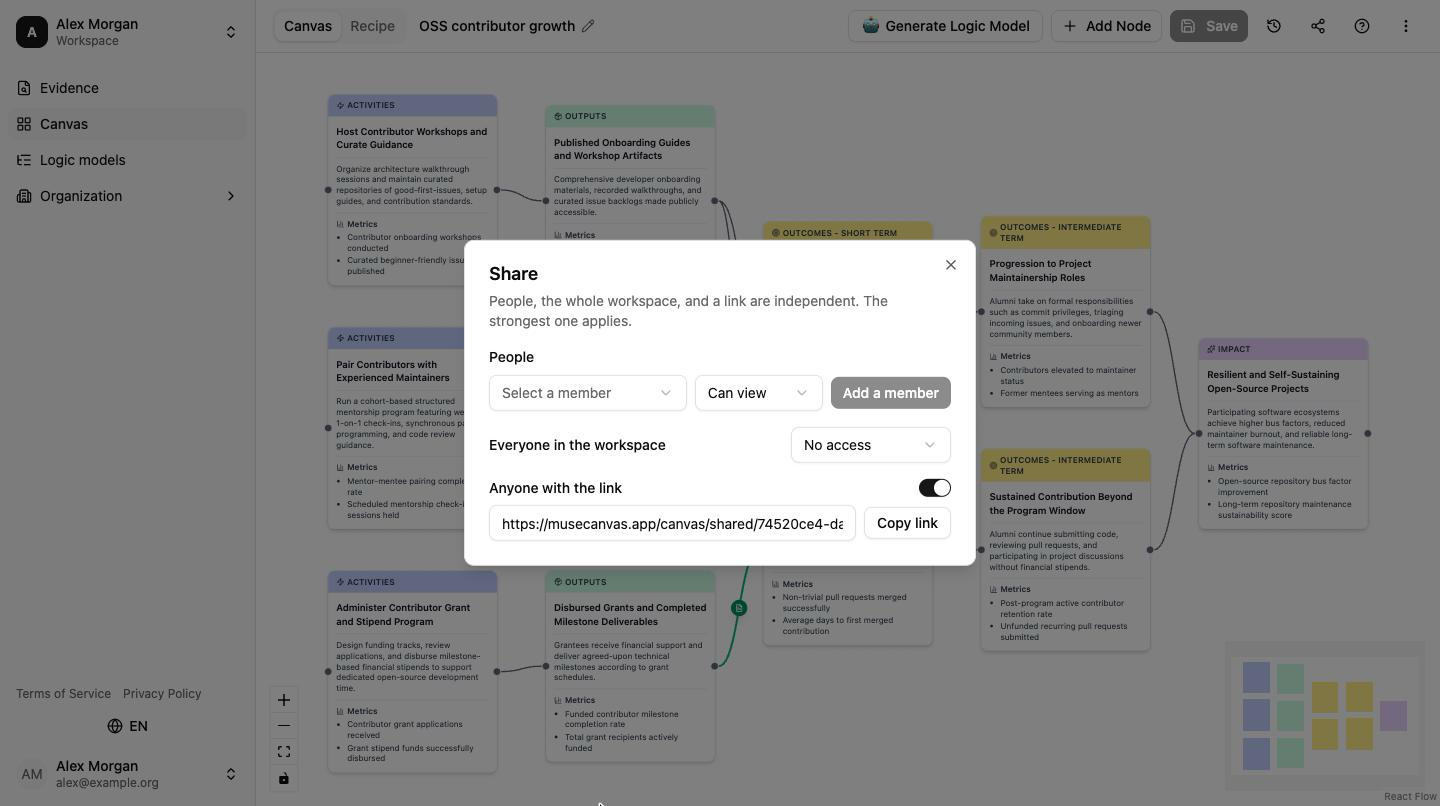
The owner of a saved logic model can share it by clicking the Share icon in the canvas header. The dialog has three independent settings; when more than one applies to a person, the strongest one wins.
| Setting | Who gets access | Options |
|---|---|---|
| People | Individual members of the workspace | Can view / Can edit |
| Everyone in the workspace | All members of the workspace the model is stored in | No access / Can view / Can edit |
| Anyone with the link | Anyone who has the link, with no sign-in | On / Off (view only) |
Sharing with Workspace Members
Under People, pick a member, choose Can view or Can edit, and click Add a member. You can change the role or remove the person later from the same list. To give the whole workspace the same access, use Everyone in the workspace instead.
Only members of the workspace can be added. To collaborate with someone new, invite them to the workspace first.
People with Can view open the logic model read-only: they can look around, export an image or JSON, and read the recipe, but cannot edit, generate, or save. People with Can edit can change and save the logic model and restore versions.
Sharing by Link
Turn on Anyone with the link and click Copy link. The link has the form musecanvas.app/canvas/shared/[token] and opens a read-only view of the latest saved version, with no account needed.
Turn the switch off to stop sharing. The old link then shows "This link is no longer valid".
In a workspace with private mode turned on, link sharing is unavailable, and turning private mode on revokes every existing link in that workspace.
Export as Image
Export your entire canvas as a PNG for presentations, reports, or documents.
- Click More in the canvas header.
- Select Export Image.
- In the dialog, click Copy image to put it on the clipboard or Download to save a PNG file.
The export captures the entire canvas, not just the part visible on screen. It is framed by a header reading "MUSE by Beaconlabs" and a footer with musecanvas.app, which keeps the image traceable when it is shared externally.
The export reflects the current arrangement of your canvas. If the layout has drifted from editing, run More → Auto Layout first to tidy it up.
Export as JSON
Export your logic model as a structured JSON file, for analysis in another tool or as a backup of the exact node and edge data.
- Click More in the canvas header.
- Select Export JSON.
- A
.jsonfile downloads automatically.
The file contains all nodes (types, titles, descriptions, and metrics) and all edges (connections and linked evidence). MUSE has no JSON import, so this file cannot be loaded back onto the canvas.
Download the Measurement Recipe as HTML
If you've generated a Measurement Recipe, you can hand it off to program operators as a self-contained HTML file.
- Make sure a recipe has been generated (the Recipe tab shows recipe content, not an empty state).
- Click More in the canvas header.
- Under the Recipe section, click Download HTML.
The file needs no external assets, so it can be emailed, shared over messaging, or archived as-is.
If the Recipe has never been generated, or the previous generation failed, Download HTML is disabled. Switch to the Recipe tab and generate one first.
Clear All
To empty the canvas:
- Click More in the canvas header.
- Select Clear All and confirm.
This removes every node and edge from the canvas. Versions you have already saved stay in History.
Older IPFS Links
Earlier versions of MUSE shared logic models through Save to IPFS. That feature has been removed, but links of the form musecanvas.app/canvas/[ipfs-hash] that were created with it still open in read-only mode.
Summary: Which Option to Use?
| Goal | Best Option |
|---|---|
| Keep working on a logic model over time | Save |
| Continue on another device | Save, then sign in on the other device and open it from Logic models |
| Go back to an earlier state | History → Restore |
| Work on a model together with teammates | Share → People or Everyone in the workspace, with Can edit |
| Show a model to someone without an account | Share → Anyone with the link |
| Use in a slide deck or report | Export Image |
| Use the data elsewhere | Export JSON |
| Hand a measurement plan to a program operator | Generate Recipe → Download HTML |