Measurement Recipe
A Measurement Recipe turns the abstract metrics on your logic model into a step-by-step measurement plan that a program operator can actually execute — using only basic tools (a spreadsheet, a short survey, an attendance log, a follow-up message).
MUSE splits impact planning into two stages:
- Logic Model — a lightweight outline of your causal pathway. Each Output or Outcome card carries only a metric name and a short description.
- Recipe — a practitioner guide generated from those metric names + descriptions plus the parent card's context. This is where measurement steps, data collection method, frequency, target value, and cautions all come from.
This separation lets you sketch the model quickly and defer the measurement-design work to a dedicated agent tuned for M&E beginners.
The Recipe agent is instructed to assume its reader is an M&E beginner with basic tools only. It avoids demanding rigorous evaluation design (control groups, validated scales, complex sampling) unless the metric explicitly calls for it. The output is meant to be handed off to program operators as-is.
Prerequisites
Before you can generate a Recipe, your canvas must have:
- At least one Output, Short-term Outcome, or Intermediate Outcome card.
(Recipes are not generated for Activities or Impact cards — those sit outside the operational measurement layer.) - At least one metric attached to one of those cards (metric name required, description optional).
Generating a Recipe also requires signing in; starting one while signed out opens the sign-in dialog.
If either prerequisite is missing, the Recipe tab will show a "no metrics" or "no target cards" message with instructions on what to add.
How to Generate a Recipe
There are two ways to trigger Recipe generation:
Option 1 — Enable Recipe at generation time
When you use AI generation, the Generate Logic Model dialog includes an "Also generate recipe" toggle. Turn it on before clicking Generate, and MUSE will produce the logic model and the recipe in a single streaming run.
This is the recommended path when you're starting from scratch — the AI writes metrics and the recipe consistently, in the same session.
Option 2 — Generate from an existing canvas
If you already have a logic model on the canvas (either AI-generated with the Recipe toggle off, or built manually):
- Click the Recipe tab at the top of the canvas view (next to the Canvas tab).
- The Recipe panel opens. If a recipe has never been generated for this canvas, you'll see an idle screen with the count of metrics that will be included.
- Click Generate recipe to run the Recipe agent against your current metrics.
You can also regenerate an existing Recipe at any time from the More menu → Regenerate.
What the Recipe Contains
The Recipe is organized by parent card type — Outputs, Short-term Outcomes, then Intermediate Outcomes — and for each metric it produces the following block:
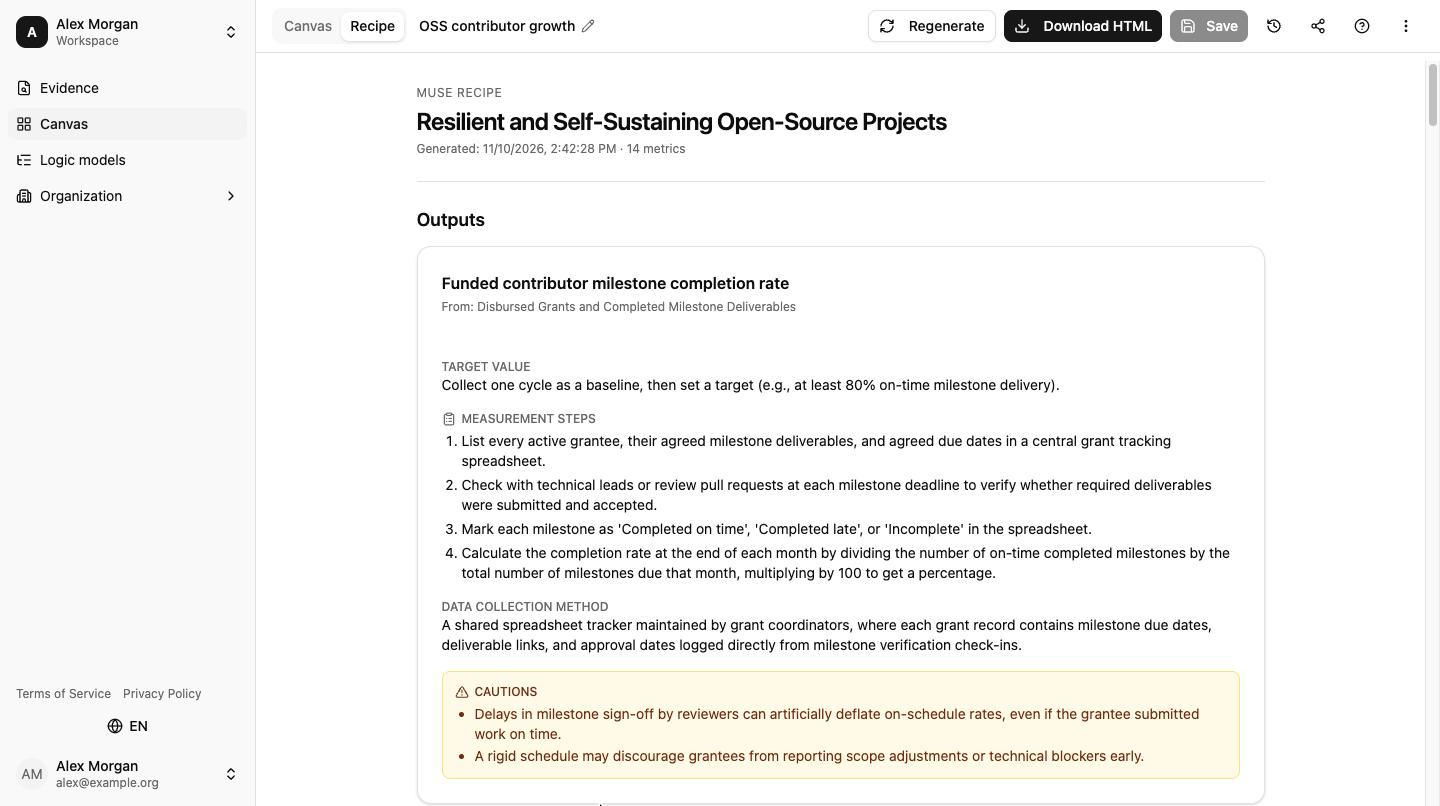
| Field | What it is |
|---|---|
| Metric name | Copied verbatim from your logic model. |
| From | The parent card's title, so you can see which node this metric belongs to. |
| Target value (optional) | A baseline-relative target, when one is sensible (e.g., "10% improvement vs. baseline"). Omitted when no reasonable default exists. |
| Measurement steps | An ordered list of 3–6 concrete actions to actually collect the measurement, each starting with an imperative verb. |
| Data collection method | One paragraph describing how the data is gathered (survey, administrative records, observation, web analytics, etc.). |
| Frequency | A recommended cadence — for example, Monthly, Quarterly, or Per cohort. |
| Cautions | 1–3 practical caveats: biases, ethical issues, or data-quality risks specific to this metric. |
When you write a metric, add a short description explaining what the metric is supposed to capture. The Recipe agent uses that description as the primary hint for step generation — you'll get sharper, more relevant measurement steps than if the agent only sees the metric name.
Language Behavior
The Recipe is written in the same language you wrote your logic model in. If your metrics and card titles are in Japanese, the Recipe will be in Japanese; if they're in English, the Recipe will be in English. The agent never translates — it preserves your working language end-to-end.
The "Stale" Badge
If you edit the logic model after a Recipe has been generated, the Recipe tab shows a small amber warning icon and the Recipe view displays a "The logic model has changed" banner.
Stale simply means the visible Recipe was generated against an earlier version of your canvas. It's still readable — click Regenerate in the More menu to refresh it against the current canvas.
Downloading the Recipe as HTML
Once a Recipe has been generated successfully, you can hand it off to program operators as a self-contained HTML file:
- Open the More menu in the canvas toolbar.
- Under the Recipe section, click Download HTML.
- A single
.htmlfile downloads to your browser's downloads folder.
The file is self-contained — no external assets are required — so it can be emailed, shared over messaging, or archived as-is.
If the Recipe hasn't been generated yet (or a previous generation failed), the Download HTML menu item is disabled. Generate the Recipe first, then return to the More menu.
Troubleshooting
| Symptom | What to do |
|---|---|
| Recipe tab says "No metrics to include" | Add at least one metric to an Output or Outcome card. See Manual Editing → Adding metrics. |
| Recipe tab says "No logic model yet" | Generate or build a logic model on the Canvas tab first. |
| Recipe tab shows the amber stale badge | The logic model changed after the last Recipe run. Open the More menu and click Regenerate. |
| "Recipe generation failed" error | Retry from the panel. If the error persists, simplify metric descriptions or reduce the metric count and try again. |
| Download HTML is greyed out | The Recipe has not been generated yet, or the previous run failed. Generate first. |